sales@bizcloud.asia   WhatsApp Line 1: +603 2780 3801   WhatsApp Line 2: +6016 450 2380   KL: +603 2780 3880   PG: +604 2024 033   JB: +607 4890 353
Administrator + employee manual

Set up BizCloud App and make your first call.

Connect your company in the AlienVoIP member portal, assign each employee a Cloud PBX extension, then sign in to BizCloud App. The screens below show the exact places to look.

Before you register a company: AlienVoIP may already have linked your BMO account. If BMO Credential shows an existing company, keep that setup and continue to Employee List. The example account values in the screenshots are hidden.
Part 1 | Administrator

Prepare the member portal and employee

Complete these steps once for the company, then repeat the employee assignment for each person who needs a BizCloud extension.

1

Open BMO Credential

Sign in to member.alienvoip.com as the administrator. In the left menu choose BMO > BMO Credential. If no company is linked, fill Company Name, Email, Mobile No and BMO Password, then select Register BMO HRM. Complete the email activation if prompted. If a company is already linked, skip registration.
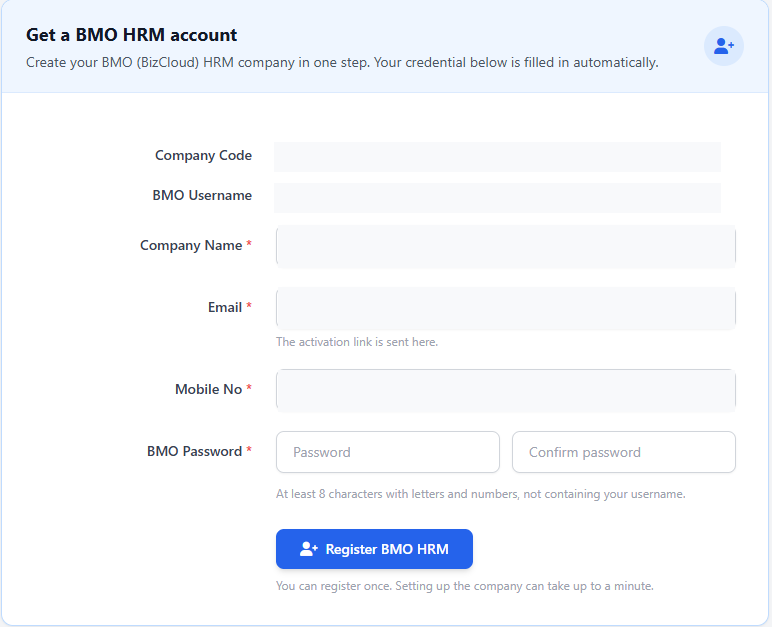
BMO Credential form in the AlienVoIP member portal, with example account values hidden
BMO Credential form. Register only when the company has not already been connected.
2

Create the employee's app login

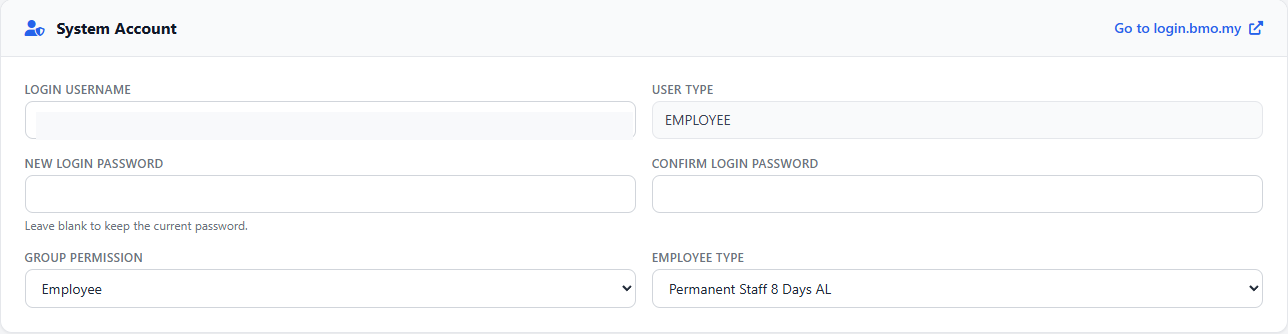
Open BMO > Employee List. Add the employee or open an existing record. In System Account, set the Login Username and New Login Password, then confirm the password. These are the employee's BizCloud App sign-in details. Save the record.

Employee System Account fields for BizCloud login username and password
System Account is the employee app login. It is separate from the extension's SIP password.
3

Assign the Cloud PBX extension

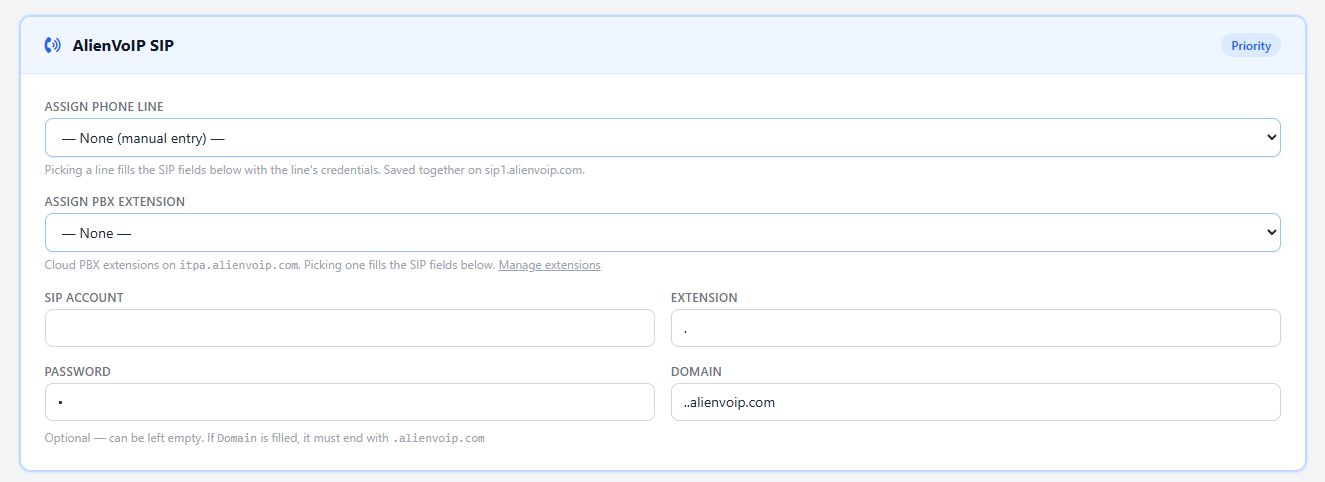
In the same employee record, find AlienVoIP SIP. Choose the correct line from Assign PBX Extension or Assign Phone Line. The portal fills the SIP fields from the chosen line. Check the extension number and save. If you are reassigning an existing line, confirm its current owner first.

AlienVoIP SIP panel showing the Assign PBX Extension dropdown
Choose the correct line or extension; the portal then fills the SIP fields.
Part 2 | Employee

Sign in, open VoIP and test the line

Ask your administrator for the approved BizCloud App link, your employee login and Company Code if your app asks for one. Keep the password private.

4

Install and sign in

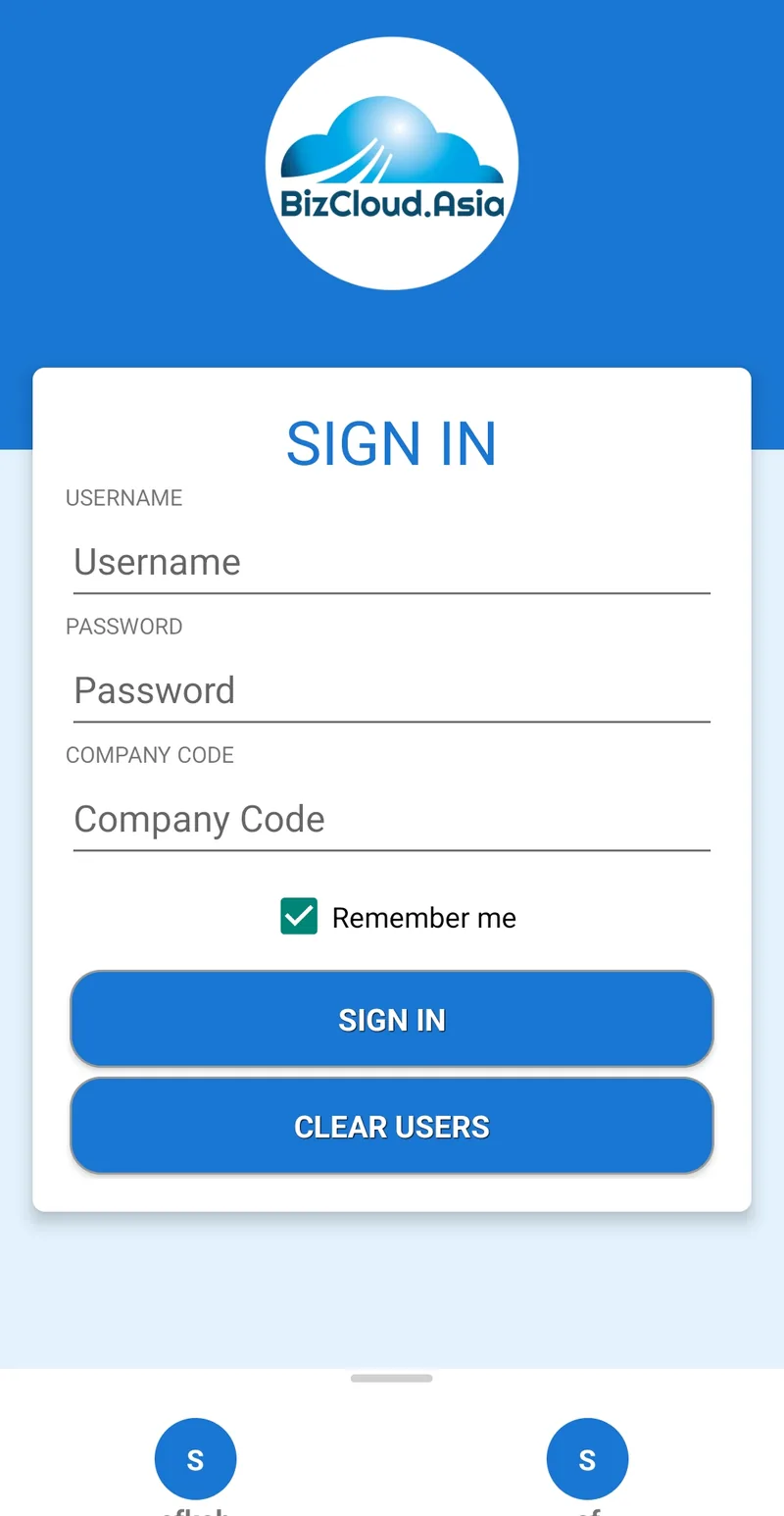
Install the approved BizCloud App on your Android phone or iPhone. Enter the employee username and password set in System Account. If a Company Code field appears, use the code supplied by your administrator. Allow microphone and call notifications when the phone asks.

BizCloud App sign-in screen with username, password and Company Code fields
Use the employee login, not the SIP password from a desktop softphone.
5

Open the VoIP tile

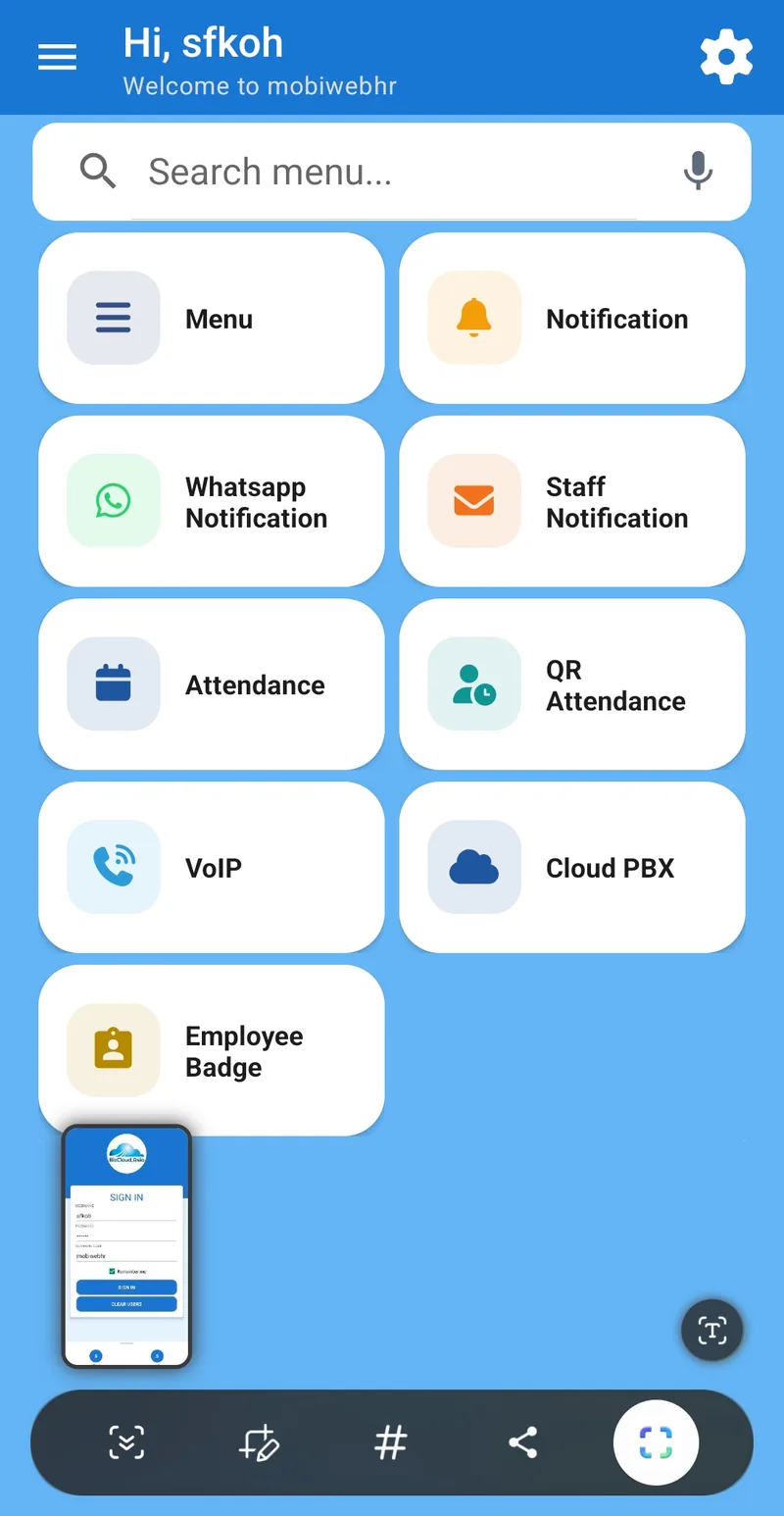
After sign-in, tap VoIP on the home screen. Your assigned extension should download automatically. If the VoIP screen is empty, refresh it. Check that your extension number appears and the line is connected before dialing.

BizCloud App home screen with the VoIP tile
Open VoIP from the app home screen. Your menu may differ by version.
6

Make and receive a test call

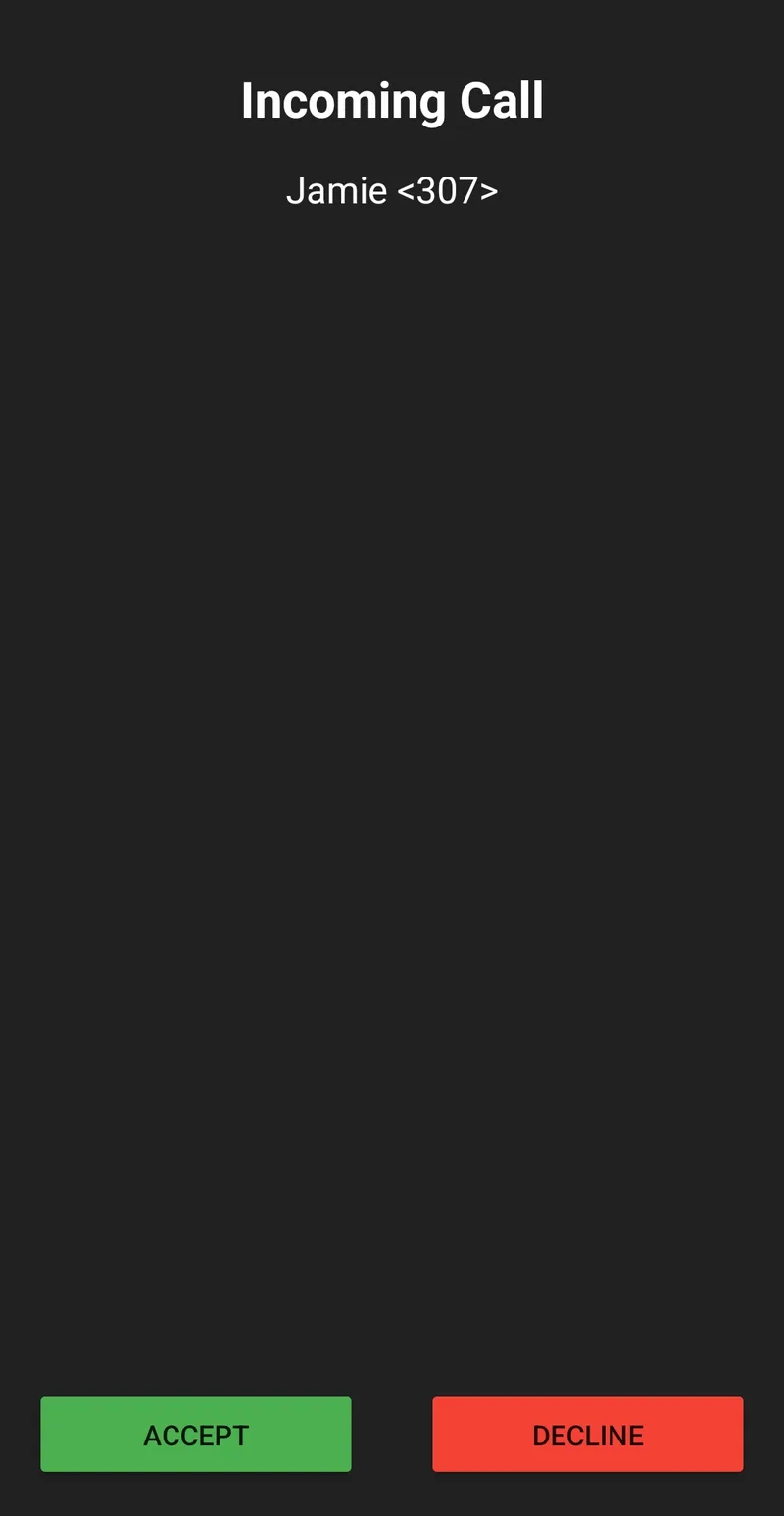
Dial a colleague's extension directly or select one from the common address book. Then test an incoming call to your business number. The app can receive calls when it is inactive if phone permissions and your device settings allow alerts. Personal contacts may also be available when configured.

Incoming call screen in BizCloud App with Accept and Decline buttons
Accept an incoming call to confirm that routing and phone alerts work.

VoIP tile or extension missing?

Ask your administrator to confirm your System Account and AlienVoIP SIP extension in Employee List. If the account is assigned but does not load after refreshing, send AlienVoIP the app version, extension and on-screen error. Do not send your password.