iOS (iPhone)
Get BizCloud from the App Store for your iPhone. Check with your administrator which app and calling setup your account supports.
App Store
AlienCloud PBX comes with BizCloud App. You can also connect a supported SIP extension through Zoiper, MicroSIP or Sipnetic. Choose the guide for your device and follow the screenshots from setup to your first call.
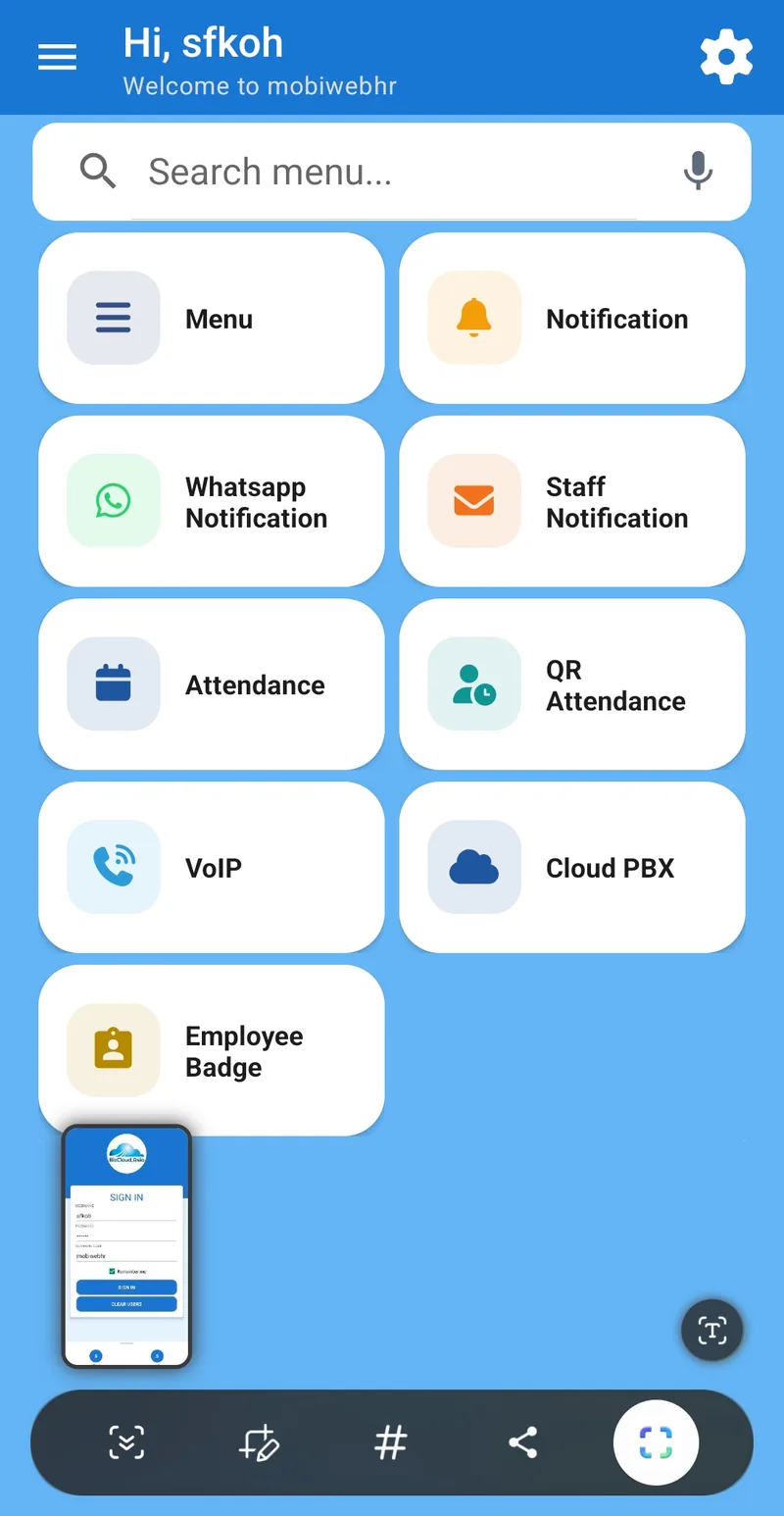
Choose your device or preferred app below, then use the illustrated setup guides to get connected.
Get BizCloud from the App Store for your iPhone. Check with your administrator which app and calling setup your account supports.
App StoreDownload BizCloud for Android and follow the BizCloud setup guide to connect your supported business extension.
Google PlayChoose the Zoiper app for your mobile or desktop device. Connect using the SIP username, password and server supplied by your administrator.
Download ZoiperStart with your employee login and assigned extension. This Android download is the same BizCloud app linked in the Android card.
Get BizCloud AppUse MicroSIP on your Windows PC. Download the installer or portable version, then follow our guide to add your SIP extension.
Download MicroSIPAn alternative SIP softphone for Android. Add your assigned SIP server, username and password, then follow the Sipnetic setup guide.
Get SipneticApp availability and calling features depend on your device, app version and PBX account. Confirm the supported app with your administrator before setup.
Each guide names the information you need, shows the relevant screen and ends with a test call. Ask your administrator which app and PBX account your team uses.
Start in the member portal, assign an employee's extension, then sign in to the mobile app.
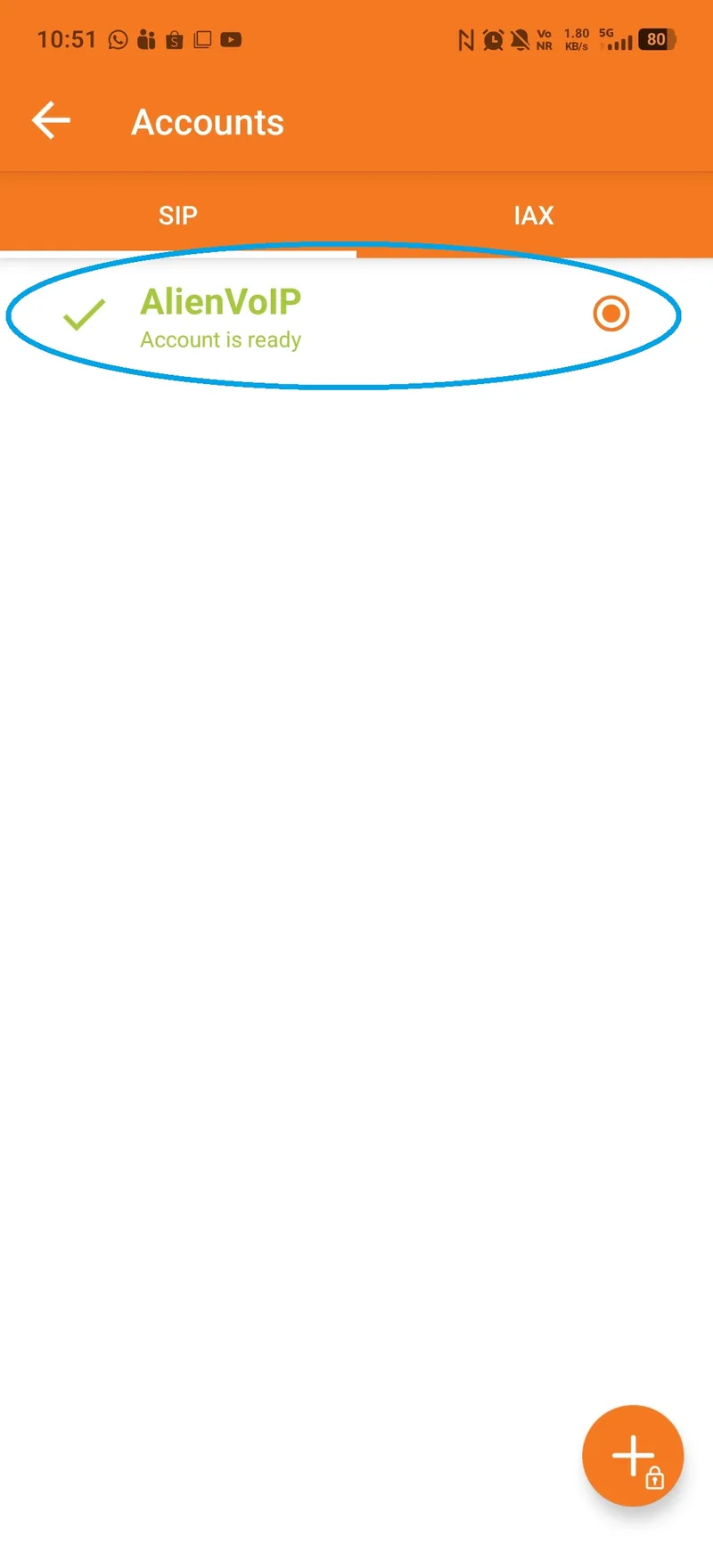
Use your extension's SIP credentials and the AlienVoIP provider profile or PBX hostname.
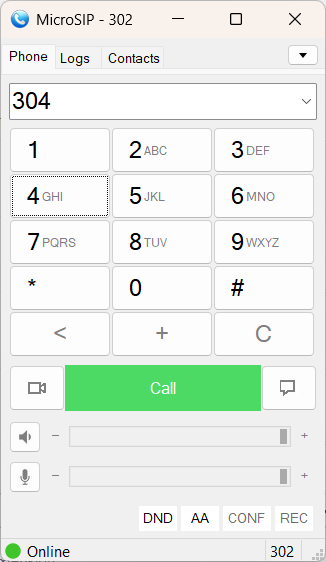
Add a SIP account in Windows, check the Online indicator and make a test call.
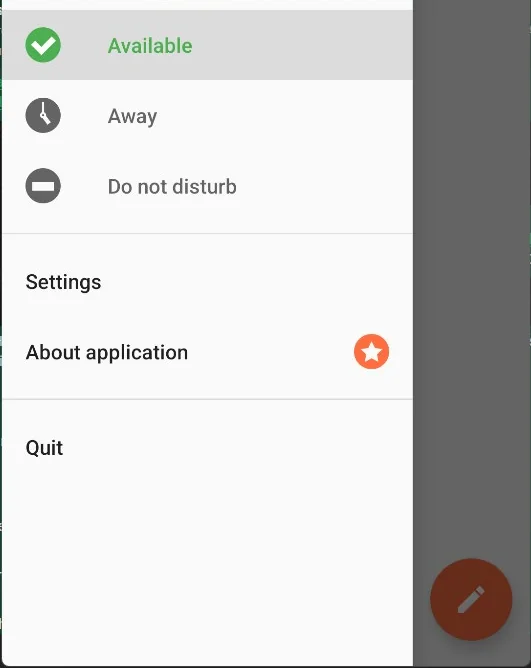
Enter your SIP server and extension manually, allow call alerts and check Available.
The BizCloud employee login and a SIP extension password serve different purposes. Your administrator can tell you which one your chosen app requires.
Use the employee username and password set in member.alienvoip.com > BMO > Employee List > System Account. Enter Company Code if the app asks for it.
See the employee setupZoiper, MicroSIP and Sipnetic use the extension's SIP username, SIP password and assigned server or domain. Keep the password private.
See an illustrated SIP setupTell AlienVoIP your app, extension, server, error message and which test failed. Do not send your password in a screenshot or message.