sales@bizcloud.asia   WhatsApp Line 1: +603 2780 3801   WhatsApp Line 2: +6016 450 2380   KL: +603 2780 3880   PG: +604 2024 033   JB: +607 4890 353
Android mobile manual

Connect Sipnetic to your AlienVoIP extension.

Use the six screenshots to add your SIP account manually, allow Android call permissions and confirm that the account is Available before your first call.

Use the extension credentials: Sipnetic signs in with the SIP username and SIP password for your AlienCloud PBX extension. These are different from the BizCloud employee app login. Screen labels can vary with the Android and Sipnetic versions.
Six illustrated steps

Add the account and check registration

Follow the example screens from left to right. Tap a picture to see it at full size.

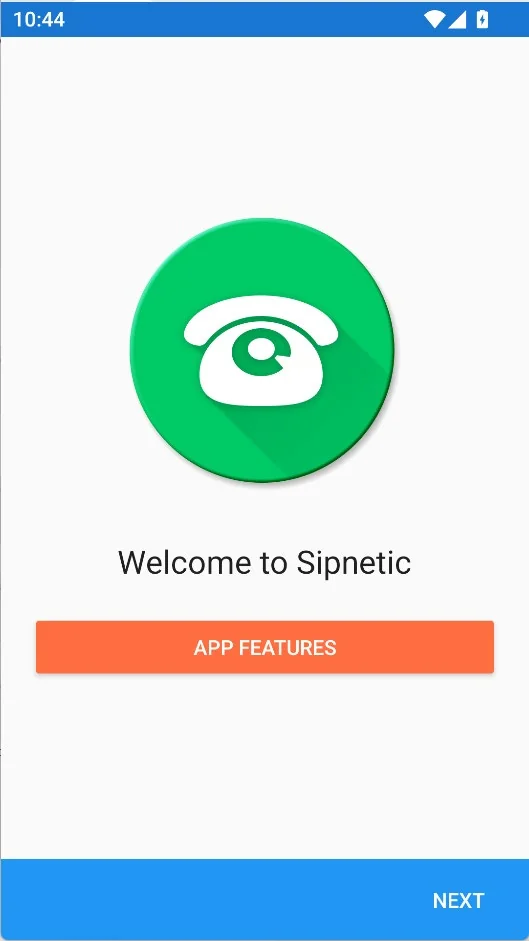
Sipnetic welcome screen with Next button
1

Begin the setup wizard

Install and open Sipnetic on Android. Tap Next on the welcome screen to begin adding an account.

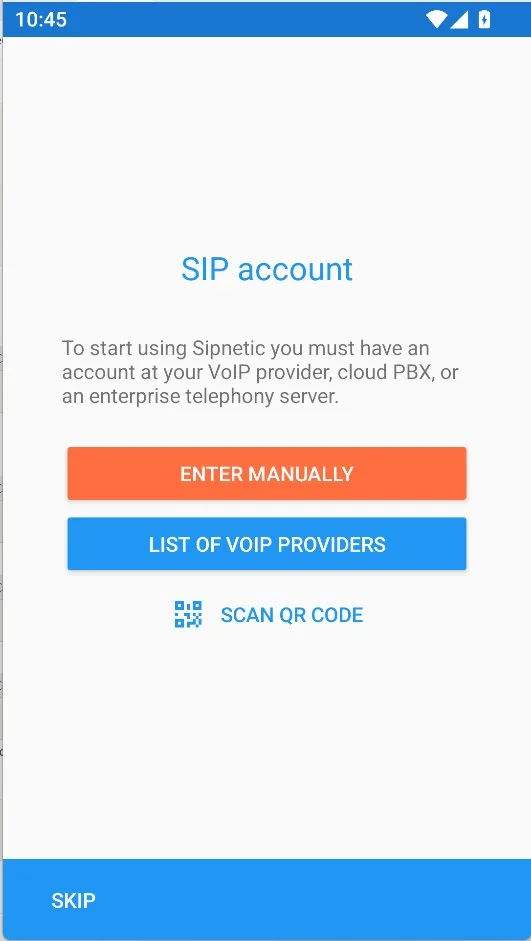
Sipnetic setup choices including manual SIP account setup
2

Choose manual setup

Choose the SIP account or manual configuration path so you can enter your AlienVoIP server and extension details.
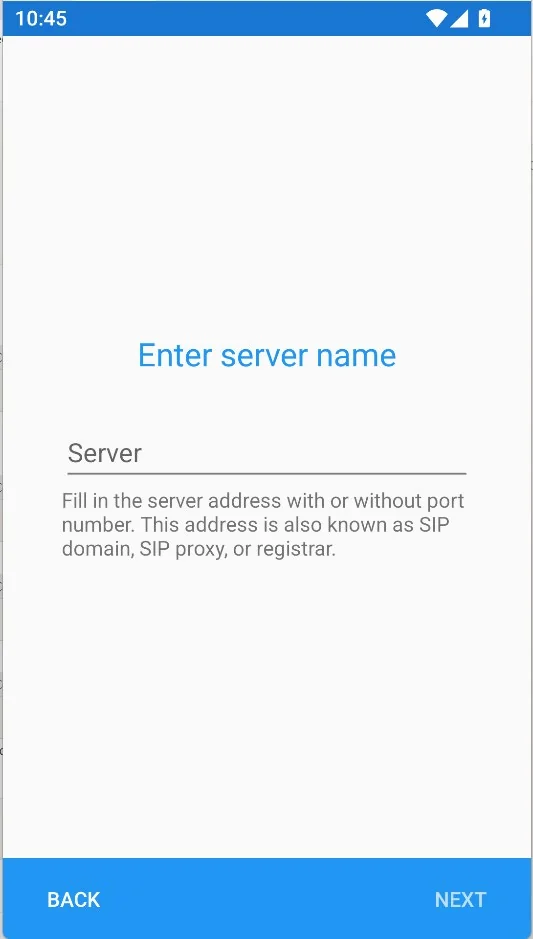
Sipnetic SIP server entry screen
3

Enter the PBX server

Type the exact server hostname or domain given by your administrator. Continue to the account fields.
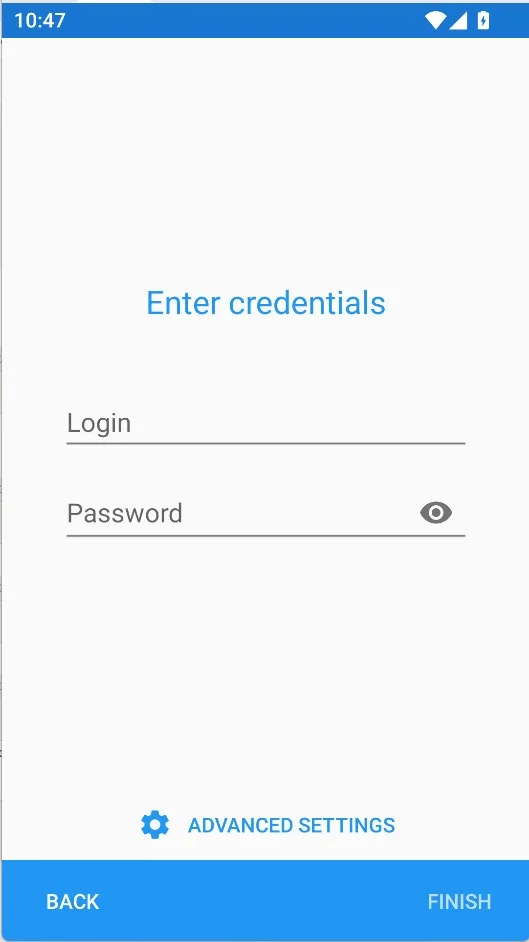
Sipnetic username and password entry screen
4

Enter extension credentials

Enter your SIP username or extension and its SIP password. Save the account and wait for registration.
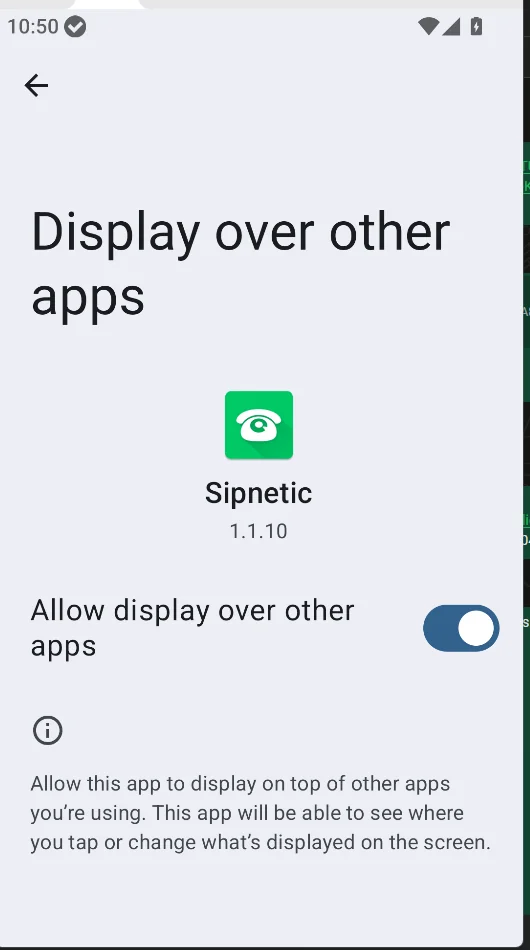
Android Display over other apps permission screen for Sipnetic
5

Allow incoming call display

On the Android screen shown, allow Sipnetic to display over other apps so incoming calls can appear. Also allow notification and microphone permissions when prompted.
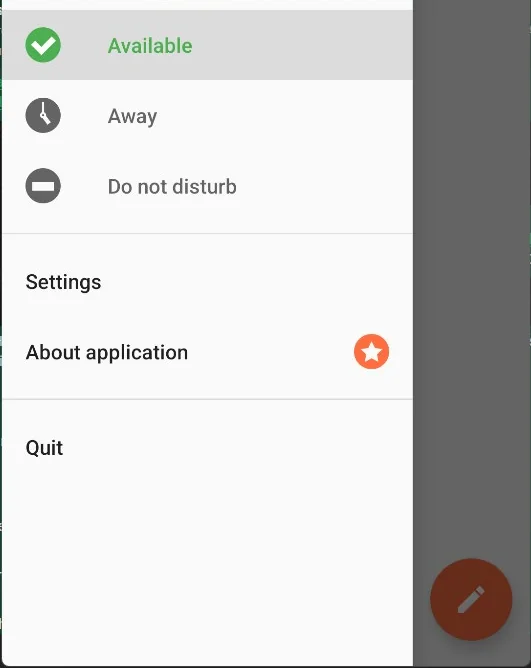
Sipnetic account showing Available status
6

Check Available and test

The account should show Available. Call another extension, then ask for an incoming call to confirm ringing and two-way audio.

If a call does not work

Check the account and audio settings

Start with the simple checks below, then contact support if the problem continues.
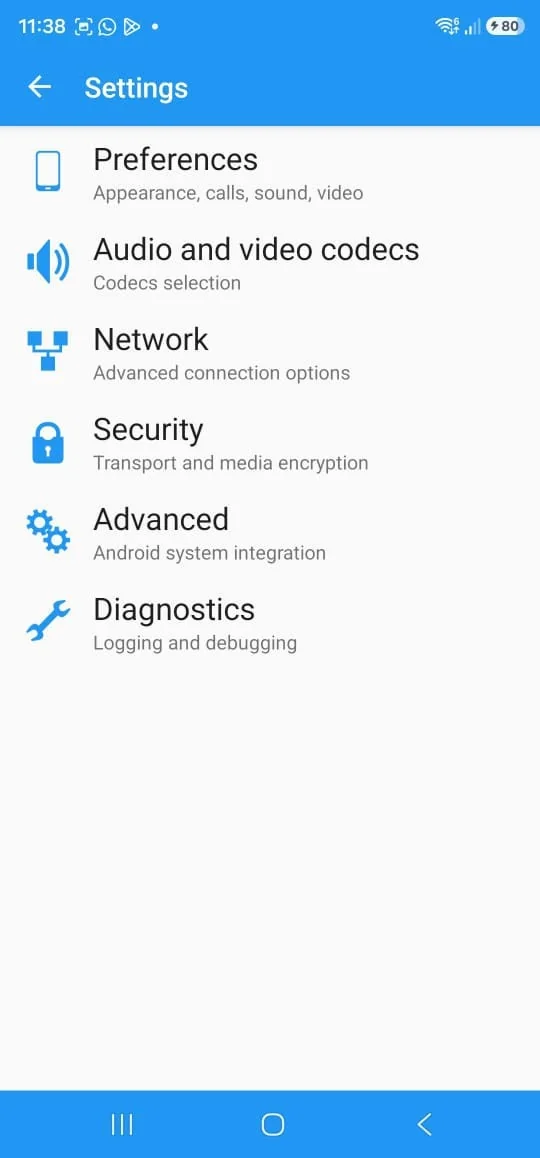
Sipnetic account settings and availability controls
Not receiving calls? Confirm the account is enabled, your status is Available and Android has allowed notifications. Turn off Do Not Disturb during testing.
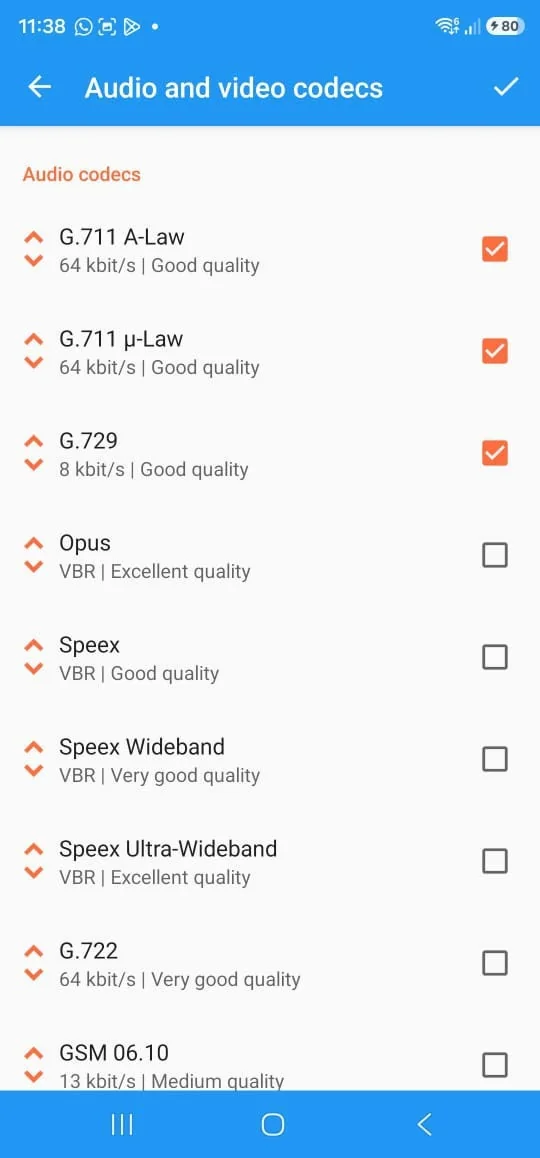
Sipnetic audio codec settings
One-way or no audio? Check microphone access and network connectivity. Change codec settings only if AlienVoIP support gives you a specific setting.

Sipnetic will not show Available?

Send AlienVoIP your extension, assigned server, Sipnetic version and the on-screen error. Keep the SIP password out of screenshots and messages.